
Ask Every Customer for a Review Automatically
The Review Request Email is your primary tool for collecting customer feedback. Instead of hoping customers review on their own (only 1% do), this email automatically asks them after delivery, increasing review collection by 10x. What you’ll achieve:- Automatically request reviews from every customer
- Collect reviews from 5-10% of customers (vs less than 1% without asking)
- Personalize emails with customer names and products
- Control timing to match your product type
Time to set up: 10 minutes | Expected response rate: 5-10% of customers
How It Works
Yuko Dashboard → Reviews → Emails → Review Request Email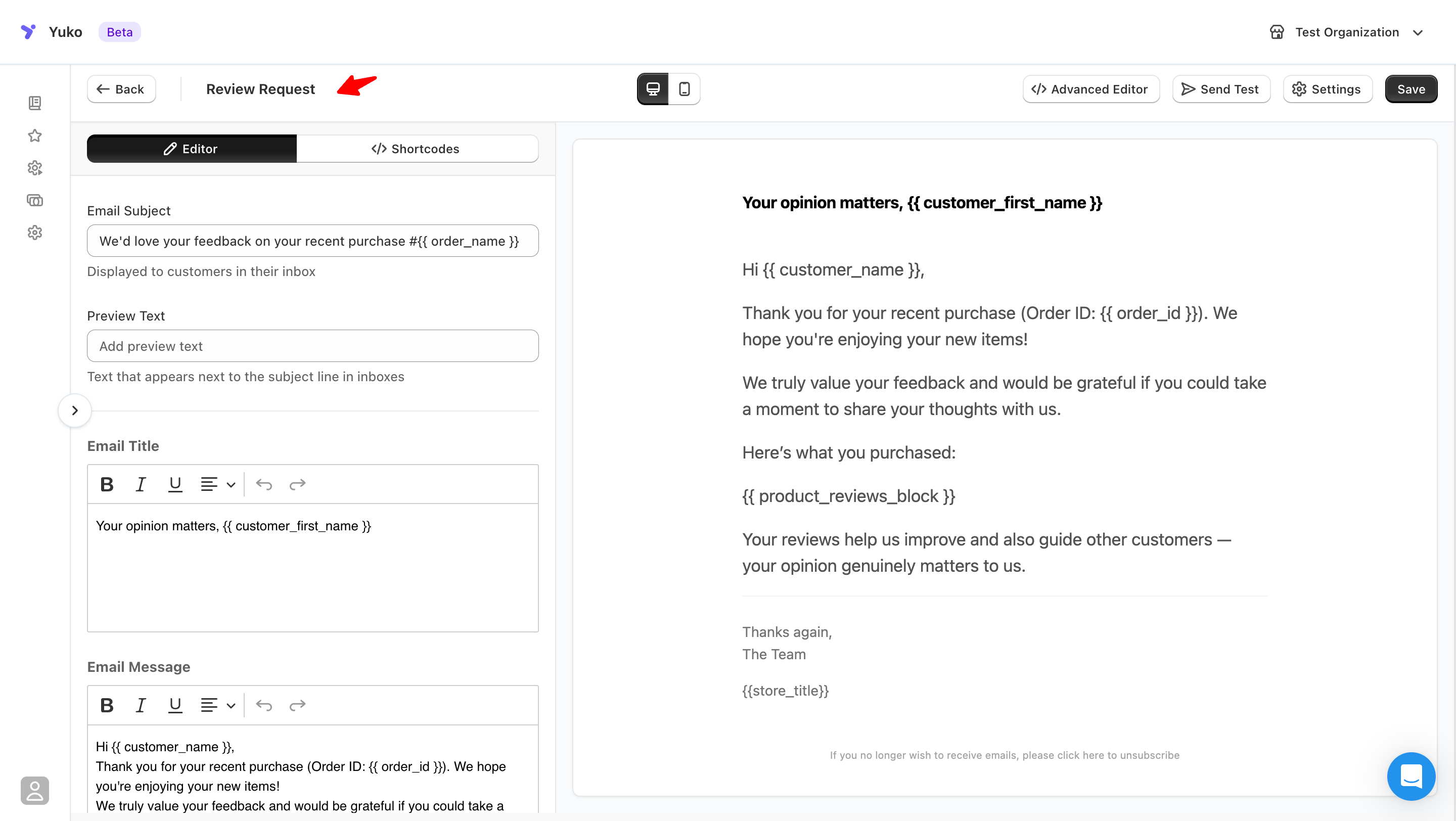
The Automatic Process
Order Completed
You mark an order as “Completed” in WooCommerce (when customer receives it).This triggers the countdown to send the review request.
Yuko Waits
Yuko waits the number of days you set.Why wait? Customers need time to use the product before reviewing.
Email Sends Automatically
Customer receives personalized email with:
- Their name
- Products they ordered
- One-click link to review form
- Optional discount reward
Email Settings
Configure your review request email to match your products and brand:Timing: When to Send
Timing: When to Send
Setting: Delay - Days after order fulfillment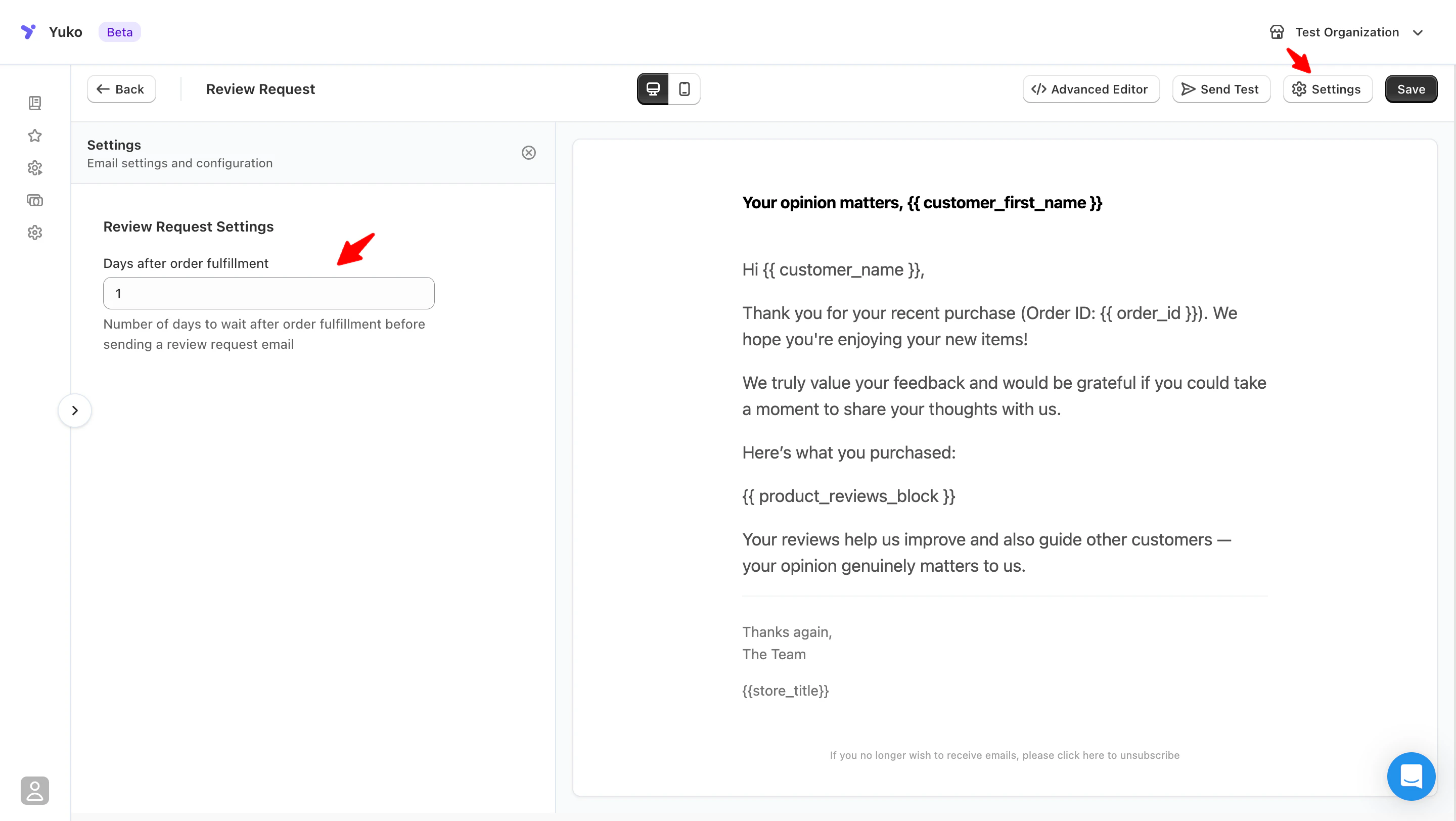
| Product Type | Recommended Delay | Reason |
|---|---|---|
| Clothing/Fashion | 5-7 days | Time to wear and wash |
| Electronics | 10-14 days | Time to unbox, set up, and use |
| Supplements/Health | 21-30 days | Time to see results |
| Books/Digital | 3-5 days | Quick to consume |
| Home Goods | 7-10 days | Time to set up and use |
| Food/Perishables | 3-5 days | Quick consumption |
| Furniture | 10-14 days | Time to assemble and use |
Subject Line: First Impression
Subject Line: First Impression
Setting: Email SubjectWhat it means: The title customers see in their inbox before openingBest practices:✅ Good subject lines:
- How’s your order_name?
- customer_first_name, share your thoughts on your order
- Quick question about your recent order
- We’d love your feedback on order_name
❌ Avoid:
- “WRITE A REVIEW NOW” (too pushy)
- “Please leave us a 5-star review” (biased)
- Long subjects over 60 characters (get cut off on mobile)
- Generic “Review Request” (not personalized)
{{customer_first_name}} in subject to increase open rates by 2xMobile matters: 60% of emails are opened on phones. Keep subject lines under 50 characters so they don’t get cut off.
Preview Text
Preview Text
What this setting does
Controls the short text that appears next to the subject line in inboxes.Best practices
- Use one short sentence
- Set expectations for what the email is about
- Avoid repeating the subject line
- It only takes a minute
- Your feedback helps other shoppers
- Tell us how your order went
Email Title
Email Title
Email Message
Email Message
What makes a good review request email
- Clear and concise (no long explanations)
- Explains why the review matters
- One clear call to action
- Easy to complete on mobile
Example message structure
What to avoid
- Asking for reviews before customers receive the product
- Long marketing copy
- Pressure or incentives language
- Multiple calls to action
Email Footer
Email Footer
Available Shortcodes (Personalization Tags)
Make your emails personal by inserting customer and order information:Customer Information
- Customer Name
- Order Details
- Product Display
- Rewards/Coupons
Use these to personalize greetings:Result: “Hi John,”
{{customer_name}}- Full name (John Smith){{customer_first_name}}- First name only (John){{customer_last_name}}- Last name only (Smith)
Common Questions
What's a good response rate?
What's a good response rate?
Industry benchmarks for review request emails:
- 5-7% = Good (average response rate)
- 8-12% = Great (above average)
- 13-15% = Excellent (top performers)
- Below 3% = Needs improvement
- Product quality - Better products = more reviews
- Customer satisfaction - Happy customers review more
- Email timing - Right timing = better response
- Email design - Professional = higher trust
- Subject line - Personal = higher opens
- Incentive - Rewards = 2x response rate
Starting out? First month may be lower (3-5%) as customers get used to emails. Give it time to improve.
Should I offer a discount for reviewing?
Should I offer a discount for reviewing?
Pros:
- 2-3x higher response rate (5% → 10-15%)
- More detailed reviews (customers put in effort)
- Faster review collection
- Increased customer loyalty
- Costs you money (10% discount per review)
- May attract only bargain hunters
- Some reviews may feel “bought”
- Violates policies if you ask for positive reviews only
- New stores: Offer incentive to build review base quickly
- Established stores: Use incentive only for photo reviews
- Always: Offer for honest feedback, not just 5 stars
- 10% off next order (most common)
- 10 store credit
- Free shipping on next purchase
- Entry into monthly $100 giveaway
Can I send to all past customers?
Can I send to all past customers?
Should you email old customers?Best practice:
- Recent customers (last 30-60 days): Yes, send review requests
- Older customers (60-90 days): Maybe, if they haven’t reviewed
- Very old (90+ days): No, they won’t remember the product
- Go to Yuko Dashboard → Customers
- Filter by “No review” and “Last 60 days”
- Send one-time review request (manual send)
- Email customers from 6 months ago
- Spam customers who already reviewed
- Send multiple requests for same order
What if I sell multiple products per order?
What if I sell multiple products per order?
Two approaches:Option 1: Single email with all products (recommended)
- Send one email listing all products
- Customer can review one, some, or all
- Less email clutter for customer
- Use
{{product_reviews_block}}shortcode
- Send individual emails for each product
- Good for very different product types
- Risk of annoying customers with too many emails
How do I test my email before sending?
How do I test my email before sending?
Always test before enabling:Steps to test:
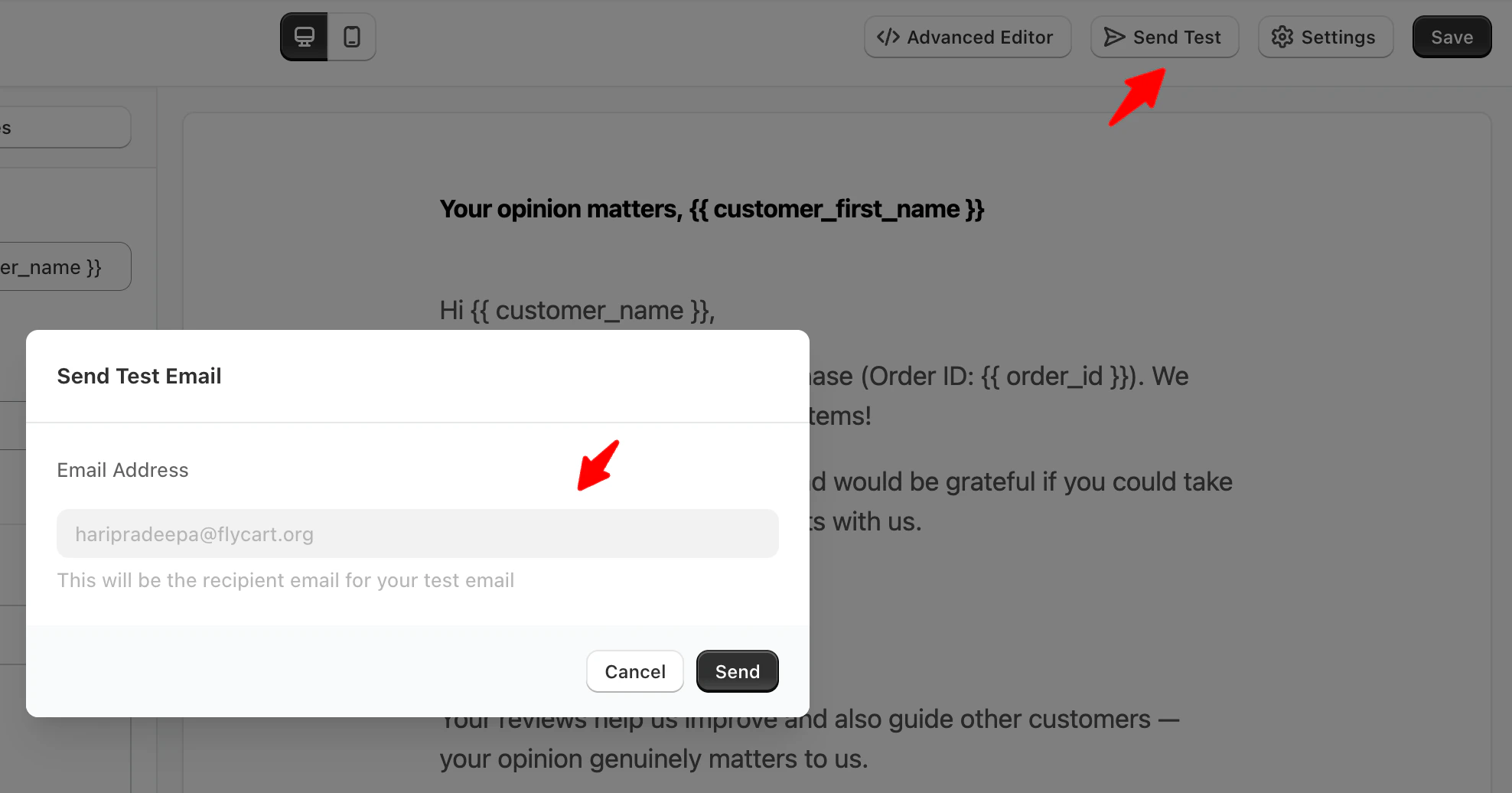
- In Review Request Email settings, On the top right.
- Click “Send Test”
- Enter your email address
-
Click Send
- Check your inbox (and spam folder)
- Open on phone AND computer
- Click all links to make sure they work
- Subject line looks good
- Your name appears in greeting (personalization works)
- Products display correctly
- Review button works
- Mobile version looks professional
- Images load quickly
- No typos or broken links
Can I A/B test different email versions?
Can I A/B test different email versions?
Yes, but do it manually:Yuko doesn’t have built-in A/B testing yet, but you can test yourself:Simple testing approach:
- Week 1: Use Subject Line A
- Week 2: Use Subject Line B
- Compare: Which had better response rate?
- Keep winner, test something else
- Subject lines (biggest impact)
- Email length (short vs detailed)
- Button text (“Review Now” vs “Share Feedback”)
- Timing (7 days vs 10 days vs 14 days)
- Incentive amount (10% vs 15% vs $10)
- Go to Reviews → Analytics (or count manually)
- Calculate: (Reviews received ÷ Emails sent) × 100 = Response rate %
Pro tip: Only test one thing at a time. If you change subject AND timing AND incentive, you won’t know what worked.
Next Steps
Configure Email Settings
Set your delay, subject line, and message content.Time: 5 minutes Location: Reviews → Emails → Review Request Email
Customize with Shortcodes
Add personalization tags for customer names and products.Time: 3 minutes Use:
{{customer_first_name}} and {{product_reviews_block}}Match Your Brand
Add your logo and colors to make emails professional using the Advanced Editor.Time: 5 minutes→ Customize Email Branding
Send Test Email
Always test before enabling to make sure everything works.Time: 2 minutes Action: Click “Send Test Email” button at bottom of settings
Need Help?
Pro tip: Start with a 7-day delay for most products. After a month, check your response rate. If it’s low ( less than 3%), try increasing the delay (customers may need more time) or adding a small incentive.