
Boost Trust with Authentic Purchase Verification
Show shoppers which reviews come from verified buyers, increasing credibility and conversion rates.This feature is available in Growth and Advanced Plans
- Increase buyer confidence with verified purchase indicators
- Reduce fake review concerns by 60-80%
- Boost conversion rates by 15-25% with trust signals
- Differentiate authentic reviews from unverified feedback
Impact: Products with 70%+ verified reviews see:
- 35-50% higher trust scores from shoppers
- 20-30% increase in add-to-cart rates
- 45-65% reduction in “are these reviews real?” support questions
- 25-40% improvement in review click-through rates
Understanding Verified Buyer Badges
Verified badges prove that reviews come from customers who actually purchased the product through your store.Verified Reviews
From actual purchasers
- Customer ordered product through your store
- Order confirmed in WooCommerce/Shopify
- Purchase tied to review in Yuko database
- Automatic or manual verification available
- Displays “Verified Buyer” or “Verified Purchase” badge
Unverified Reviews
No purchase record found
- Review submitted without order connection
- Customer may have purchased in-store or elsewhere
- Imported reviews without order data
- Manual review submissions
- No badge displayed (or “Unverified” label optional)
Automatic verification: When connected to WooCommerce or Shopify, Yuko automatically verifies reviews from customers who purchased through your online store.
Yuko Dashboard → Settings → Reviews → Manage Reviews -> Add Verified Badge
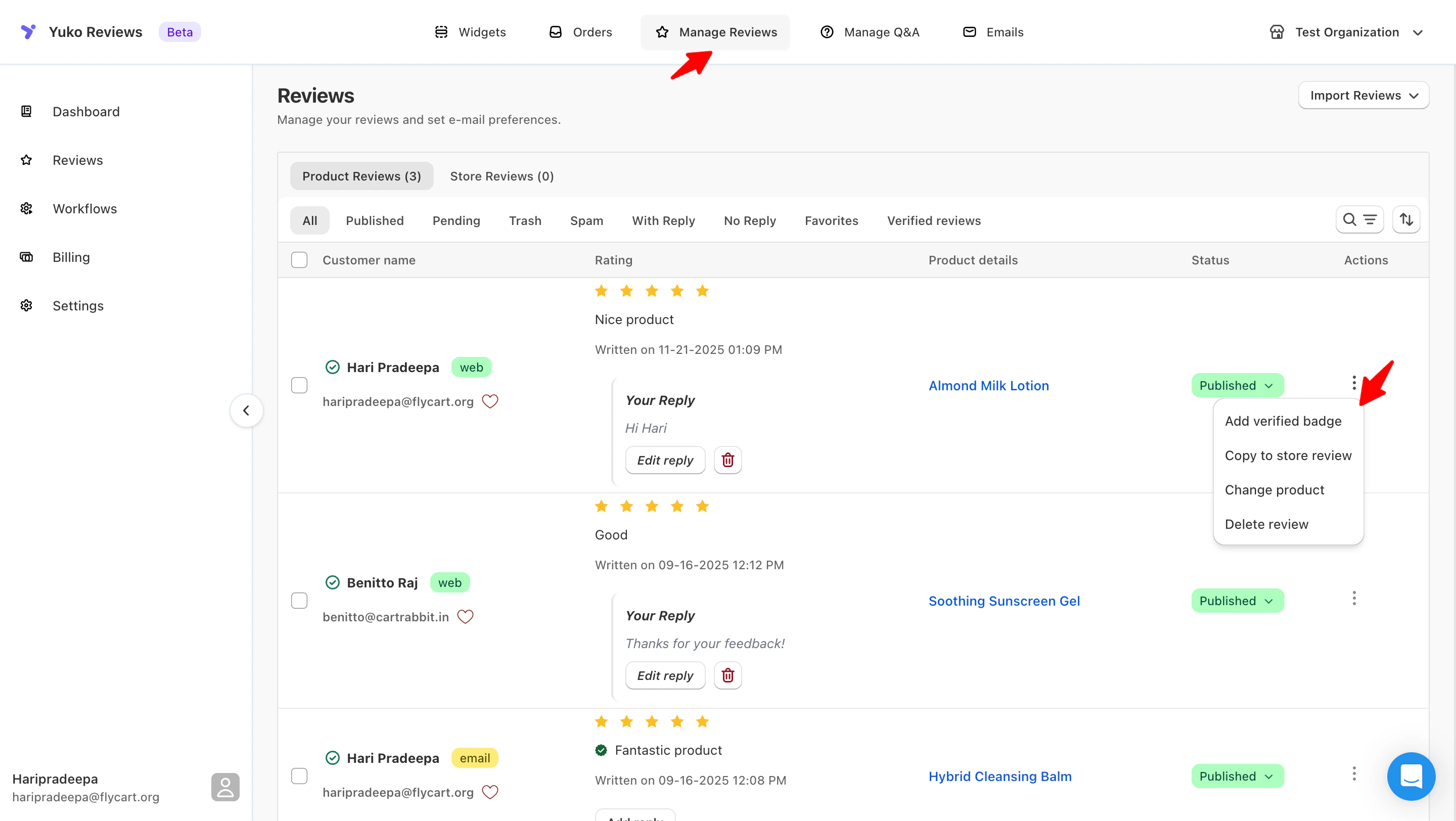
A review earns a Verified Buyer badge when:
- The reviewer purchased the product from your connected Shopify or WooCommerce store
- The review is successfully matched to a real order in Yuko
- The purchase data (email, order ID, product) aligns with the review
Review Display Controls
Customize how reviews appear across your store to match your brand and maximize impact.Yuko Dashboard → Settings → Reviews → Review Display Controls
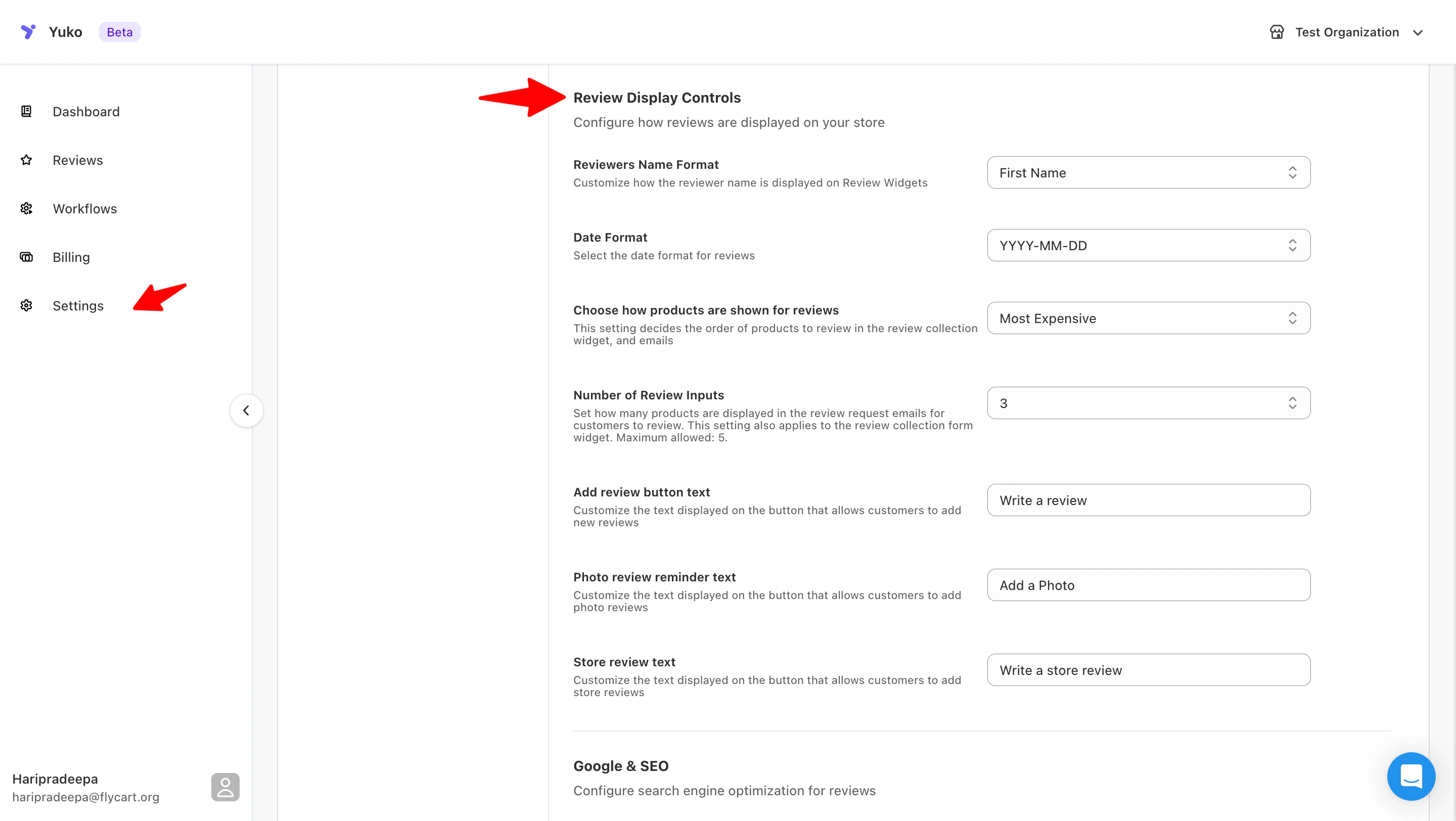
Reviewer Name Format
Reviewer Name Format
-
Choose how reviewer names appear publicly on all widgets.
Options include:- Full Name – Ideal for transparency and trust
- First Name Only – A balance of privacy and authenticity
- Initials – Best for privacy-focused stores
Legal note: Some regions (EU with GDPR) may require explicit customer consent to display full names. Check local privacy laws.
Review Date Format
Review Date Format
Select how review timestamps are displayed.
Examples:
Settings: Yuko Dashboard → Settings → Reviews → Display → Date Format
Examples:
- YYYY-MM-DD
- DD/MM/YYYY
- Month DD, YYYY
Settings: Yuko Dashboard → Settings → Reviews → Display → Date Format
Product Sorting in Review Requests & Widgets
Product Sorting in Review Requests & Widgets
Control how products are ordered when customers receive review request emails or when they see review widgets.
Sorting options include:
Sorting options include:
- Most Expensive First – Useful for premium product lines
- Cheapest First – Highlights accessible products
- Random Order – Provides a balanced, unbiased view
Recommended: “Recently purchased” order yields 35-40% higher review submission rates than random order.
Number of Review Inputs (Email Review Request Limit)
Number of Review Inputs (Email Review Request Limit)
Set how many products appear in each review request email.
Settings: Yuko Dashboard → Settings → Reviews → Review Requests → Max Products Per EmailMaximum: 5 products per email (Yuko limit)
- Maximum: 5 products per email
- Helps avoid overwhelming customers
- Increases review submission rates by keeping email content concise
Settings: Yuko Dashboard → Settings → Reviews → Review Requests → Max Products Per EmailMaximum: 5 products per email (Yuko limit)
Add Review Button Text
Add Review Button Text
Photo review reminder text
Photo review reminder text
Customize the text displayed on the button prompting customers to add photo reviews.
Examples:
Examples:
- “Add a Photo”
- “Upload Product Images”
- “Share a Photo Review”
Store Review Button Text
Store Review Button Text
Need Help ?
Pro tip: Stores maintaining 65-75% verification rates see optimal results - high enough to build trust, broad enough to maintain review volume. Don’t obsess over 100% verification at the cost of losing valuable feedback.