
Turn Reviews into Conversations That Build Loyalty
Responding to customer feedback shows you care and transforms one-time buyers into loyal advocates. What you’ll achieve:- Strengthen customer relationships with personalized, thoughtful responses
- Resolve issues publicly and showcase excellent customer service
- Increase review response rates by 40-60%
- Improve customer retention by 25-35%
Impact: Merchants who reply to 80%+ of reviews see:
- 30-45% higher repeat purchase rates
- 50-70% improvement in negative review resolution
- 35-50% increase in customer satisfaction scores
- 40-60% boost in average customer lifetime value
How to Reply to Any Review
You can reply to both Product Reviews and Store Reviews directly from the Yuko dashboard. Replies are public and appear on all review widgets where the review is displayed.Where to Find Reviews
Navigation: Yuko Dashboard → Reviews → Manage ReviewsOn the Manage Reviews page, you’ll see two tabs:
- Product Reviews
- Store Reviews
- View all submitted reviews
- Manage replies
- Adjust review-related email preferences
Select the Review to Reply
Click on the review you want to respond to.
- Go to Reviews → Manage Reviews
- Locate the review you want to respond to
-
Under the review date , click Add Reply

Compose Your Response
Enter your reply in the text box provided.After clicking Add Reply, a dialog box opens showing: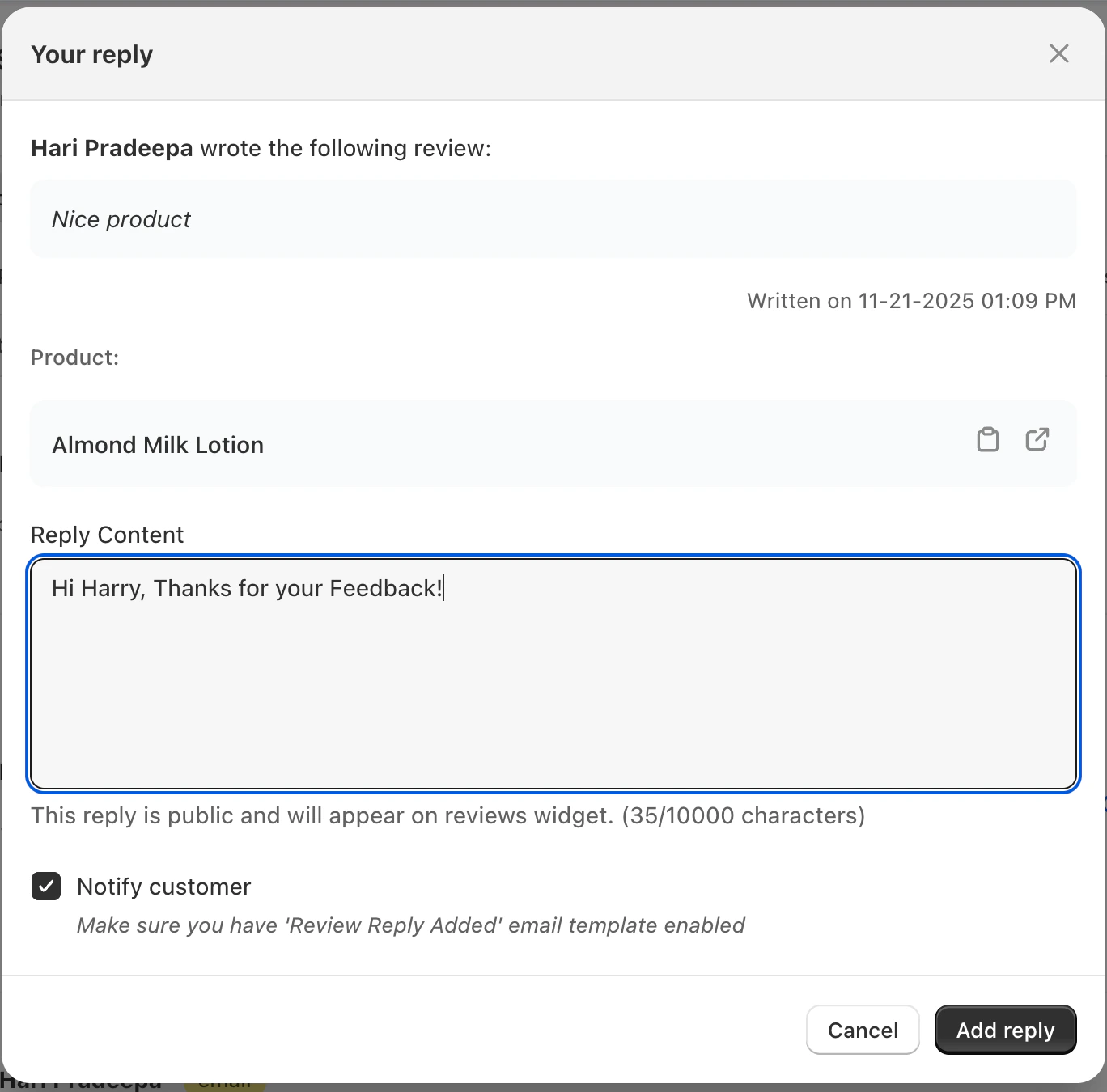
- The customer’s review content
- Product name
- Review date
- Customer details
- Enter your response to the customer
- Replies are public and will appear on the review widget
Reply best practices: - Address the customer by name when possible
- Reference specific points from their review
- Keep tone professional but friendly
- Offer solutions for negative feedback
- Express genuine gratitude for positive reviews
Preview Before Posting
Review your reply for tone, spelling, and clarity.Check that your reply:
- Sounds genuine and personal (not template-like)
- Addresses the customer’s specific feedback
- Maintains your brand voice
- Contains no spelling or grammar errors
- Includes next steps if applicable (refund, replacement, contact info)
Notify the Customer (Optional)
- Enable the Notify customer checkbox if you want the customer to receive an email notification
- To use this option, make sure the “Review Reply Added” email template is enabled in your email settings
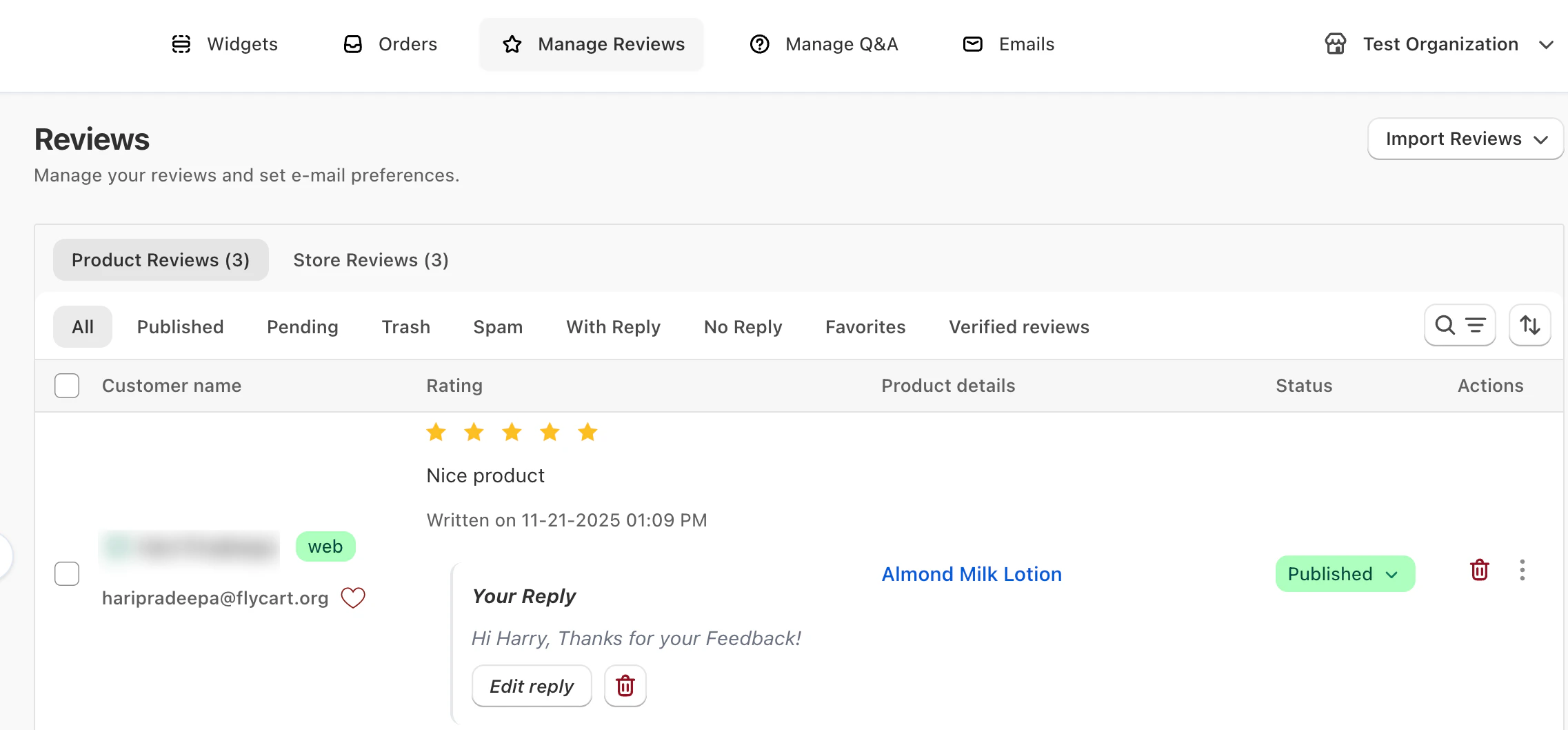
Editing or Deleting a Reply
You can update or remove your reply at any time.- Click Edit Reply to modify the response
- Click Delete Reply to remove it completely
Reply Best Practices
To build trust and improve customer experience:- Address the customer by name when possible
- Reference specific points from their review
- Keep the tone friendly, professional, and on-brand
- Offer solutions for negative feedback
- Thank customers for positive reviews
💡 Tip: Customers are more likely to trust brands that respond quickly. Consider enabling reply notifications to stay updated on new reviews.
Timing matters: 85% of customers expect a response within 48 hours. Set up reply notifications in Settings → Notifications to stay on top of new reviews.
Reply Strategies by Review Type
Different review ratings require different response approaches for maximum effectiveness.- 5-Star Reviews (Positive)
- 4-Star Reviews (Positive with Suggestions)
- 3-Star Reviews (Mixed/Neutral)
- 1-2 Star Reviews (Negative)
Show appreciation and build loyaltyReply objectives:Pro tips:
- Thank the customer genuinely
- Reinforce their positive experience
- Encourage repeat purchases
- Invite them to share with friends
- Personalize by mentioning specific product features they praised
- Offer a small discount or loyalty reward to encourage repeat purchase
- Ask if they’d recommend the product to friends
- Keep tone enthusiastic but professional
Need Help ?
Book a Free Setup Call
Talk to our team for personalised setup help.Time: 30 minutes
Contact Support
Visit our support hub for help articles, live chat and ticket submission.
Browse the Guides
Documentation across loyalty, referrals, memberships and more.
Install Yuko
Add Yuko to your Shopify store from the Shopify App Store.
Pro tip: Stores with 85%+ reply rates see 40% higher conversion rates than those who rarely respond. Make replying to reviews a daily habit, not an occasional task.