
Navigation
Yuko Dashboard → Reviews → Widgets → Star Rating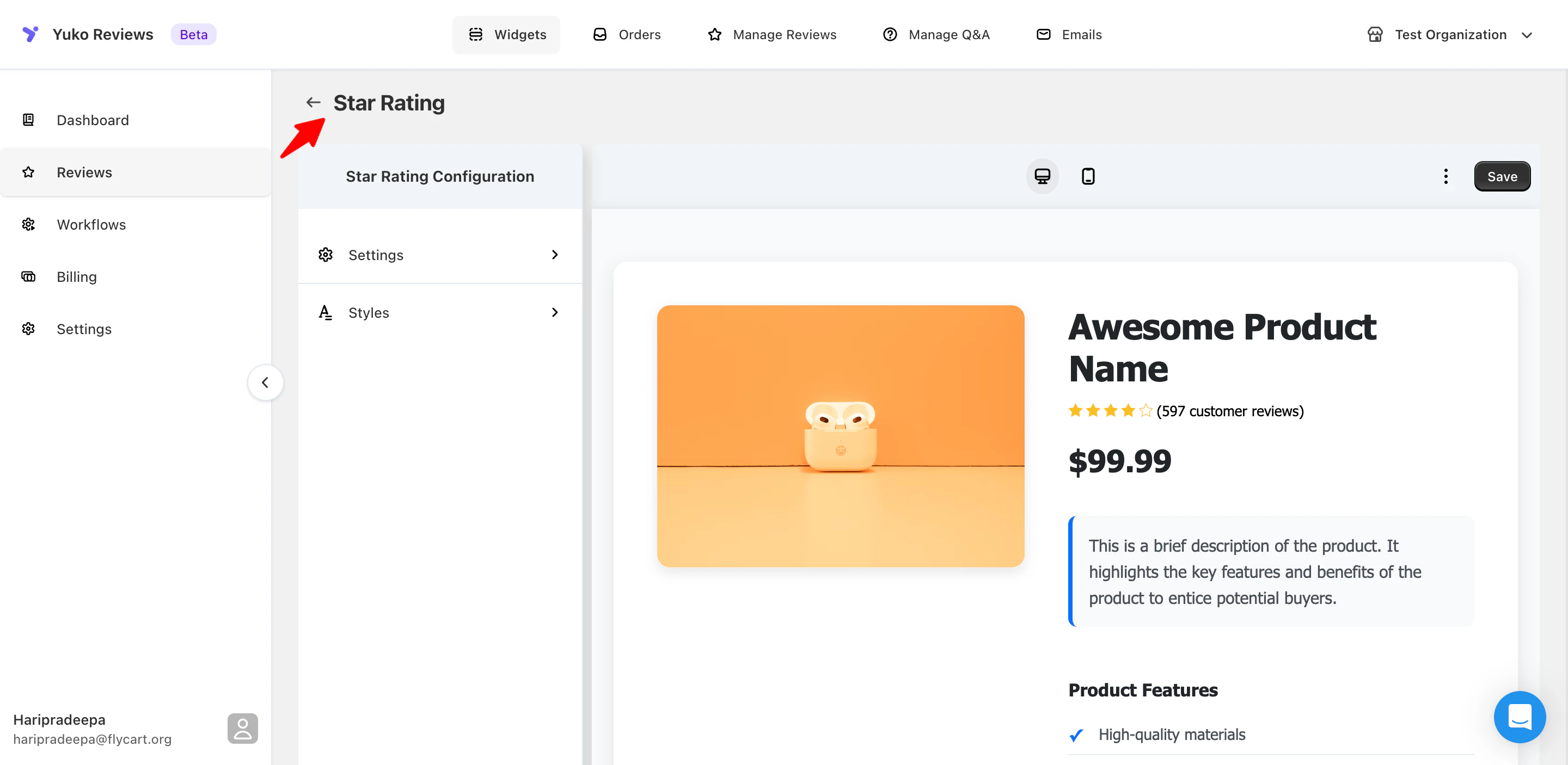
How the Star Rating Widget Works The widget calculates the product’s average rating based on approved reviews and displays stars and review counts according to your chosen settings. You can choose to display:
- Stars only
- Review count only
- Stars + review count
You can customize the text next to the stars using placeholders:
| Placeholder | Description |
|---|---|
{{count}} | Total number of reviews |
{{rating}} | Average rating (rounded to one decimal) |
- “Rated rating based on count reviews”
- “count customers rated this rating stars”
Settings
The Star Rating Widget is fully customizable in the Yuko Dashboard. Navigation: Yuko Dashboard → Reviews → Widgets → Star Rating → Customise1. General / Text Settings
| Option | Description |
|---|---|
| Text | Customize the text content using placeholders |
| Text (Singular) | Customize text for singular review scenarios |
| Show Q&A Count | Enable or disable the Q&A count display |
| Hide Text | Hide all text content next to the stars |
| Hide Stars | Hide all star icons |
| Show Empty Stars | Enable empty stars to maintain consistent badge width; check store to see changes |
2. Style Settings
| Option | Description |
|---|---|
| Widget Alignment | Align the widget (Left, Center, Right) |
| Icon Position | Position of the star icons relative to text |
| Icon Alignment | Alignment of the icons themselves |
| Text Color | Customize the color of the text |
| Rating Icon Color | Customize the star color |
All style changes can be previewed live in Yuko before saving.
3. Advanced Customization (CSS)
For additional control over spacing, alignment, or visibility, you can add custom CSS: Steps:- Go to Star Rating Widget settings
- Scroll to Advanced CSS
- Add your custom CSS code
- Click Save