
Yuko Dashboard → Settings → Reviews → General → Review Display Controls
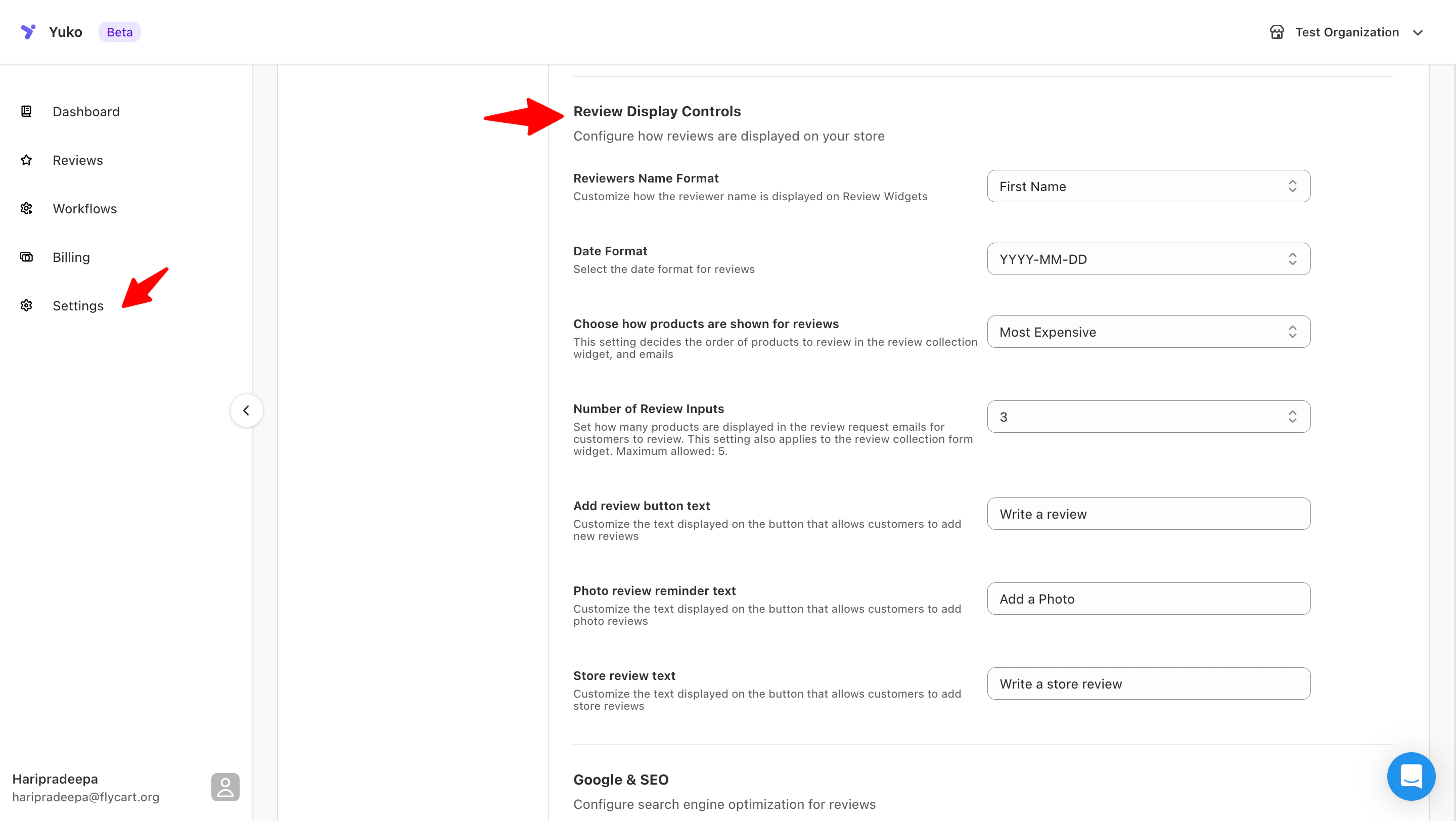
How it looks
- Example of reviewer name display
- Example of date formatting
- Example of review submission buttons
How Review Display Controls work
These settings define how reviews are formatted and presented. Adjusting them helps you maintain consistent branding, improve readability, and guide customers toward writing better reviews. Below is a full breakdown of every setting and how it affects your widgets.1. Reviewer Name Format
Choose how reviewer names appear in your widgets.This helps you manage anonymity, privacy, and overall consistency across your store.
2. Date Format
Select how review dates are displayed anywhere a timestamp appears.Pick a format that aligns with your store’s locale or branding preferences.
3. Product Order for Review Collection
Decide how products are ordered in review request emails and in your review collection widget.Useful when customers buy multiple items and you want a predictable review submission order.
4. Number of Review Inputs
Control how many products appear in review request emails and collection forms.Adjust this based on how many items customers typically purchase per order.
5. Add Review Button Text
Customise the call-to-action label shown on your “Write a Review” button.Ideal for reflecting your brand voice or increasing engagement.
6. Photo Review Reminder Text
Edit the text used on the button that encourages customers to upload a photo.A simple way to boost the number of photo or media reviews.
7. Store Review Button Text
Change the text displayed on the button for submitting store-level reviews.This helps make your testimonial-collection flow clear and user-friendly.
Tips for Using Review Display Controls
- Match your brand tone: Adjust button wording to reflect your store personality.
- Encourage richer reviews: Use motivating text to promote photo uploads.
- Stay consistent: Use a uniform date and name format across your store.
- Optimize review collection: Increase the review input count when customers purchase multiple items.