
YUKO Dashboard → Settings → Reviews → General → Review Restrictions & Limits
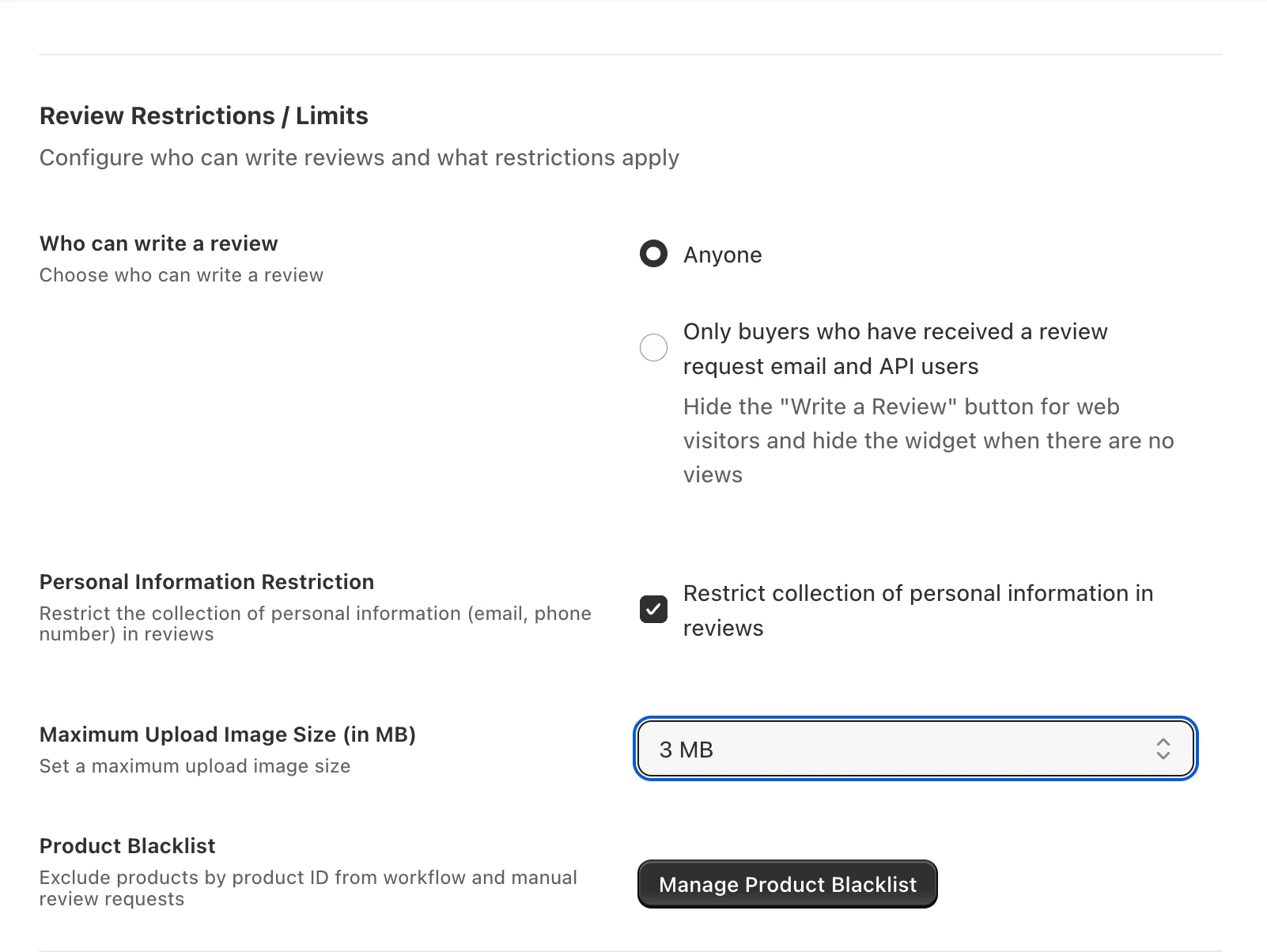
Settings:
Who Can Write a Review
Who Can Write a Review
This setting controls who is allowed to submit reviews on your store.
How It Works:You can choose between:
How It Works:You can choose between:
- Anyone – Allows all visitors to submit reviews
- Only buyers who have received a review request email and API users – Restricts reviews to customers you explicitly invite
Common Use Cases
- Preventing fake or unverified reviews
- Ensuring all reviews come from real customers
- Maintaining higher review trust and credibility
Best Practices
- Use review request–only submissions for maximum authenticity
- Combine with Email Blacklist for strong spam prevention
Personal Information Restriction
Personal Information Restriction
This setting helps protect customer privacy by restricting sensitive information in reviews.
**How It Works: **When enabled:
**How It Works: **When enabled:
- Email addresses and phone numbers are automatically restricted in review content
- Sensitive data is hidden from public display
- Reviews remain readable without exposing private information
Common Use Cases
- Privacy and compliance requirements
- Preventing accidental data sharing
- Improving customer trust
Best Practices
- Always enable for public-facing reviews
- Recommended for GDPR and privacy compliance
Maximum Upload Image Size
Maximum Upload Image Size
This setting controls the maximum file size allowed for review image uploads.How It Works
- Sets a size limit for uploaded review images
- Prevents large files from slowing down page performance
- Helps manage storage usage
- Maintaining fast page load times
- Preventing oversized image uploads
- Optimizing mobile performance
- Keep limits reasonable for quality and performance balance
- Monitor upload failures after changing limits
Product Blacklist
Product Blacklist
The Product Blacklist lets you exclude specific products from review workflows.
Where to Find the Product Blacklist:There are two ways to access and manage the Product Blacklist.Option 1: From Review Restrictions & LimitsNavigation:
YUKO Dashboard → Settings → Reviews → General → Review Restrictions & Limits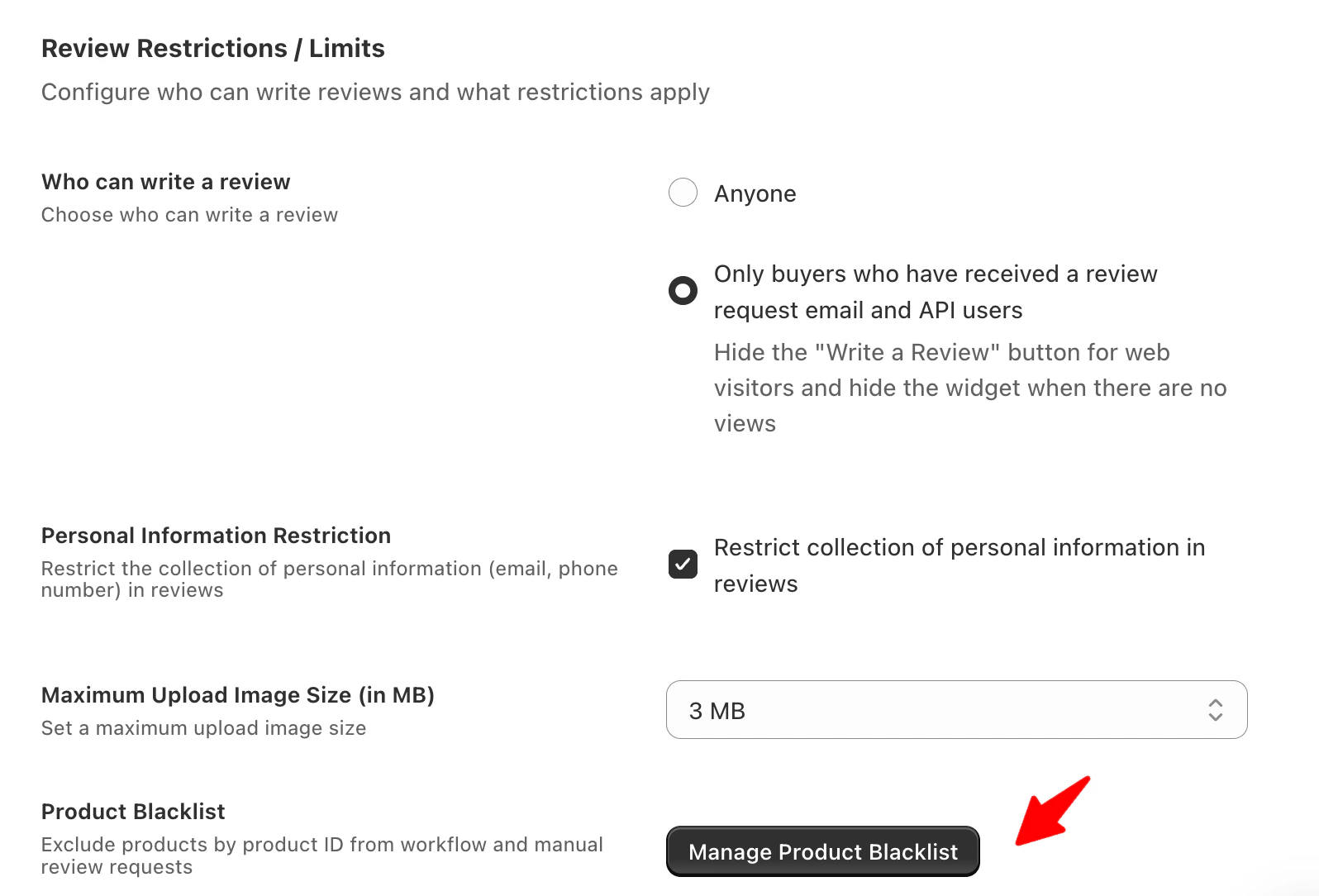
Navigation:YUKO Dashboard → Reviews → Product Blacklist This page provides full control over excluded products and supports bulk management options.
Click Add Manually to exclude products by entering their product IDs.
For bulk exclusions, click Upload CSV.
Where to Find the Product Blacklist:There are two ways to access and manage the Product Blacklist.Option 1: From Review Restrictions & LimitsNavigation:
YUKO Dashboard → Settings → Reviews → General → Review Restrictions & Limits
📝 Note: This option exists for quick access while configuring review restrictions.Option 2: Direct Access
Navigation:YUKO Dashboard → Reviews → Product Blacklist
This page provides full control over excluded products and supports bulk management options.How Product Blacklist Works
- Blacklisted products will not receive review request emails
- Manual review requests are also skipped for these products
- Existing reviews are not removed
- Removing a product from the blacklist immediately restores review requests
📝 Note: Product Blacklist affects review collection, not review display.
Add Products to the Blacklist
You can exclude products using either of the following methods.Add Products Manually
Click Add Manually to exclude products by entering their product IDs.
How it works:
- Enter numeric product IDs in the input field
- Separate multiple IDs with commas
- Only valid numeric product IDs are accepted
Important notes:
- Invalid or non-numeric IDs are ignored silently
- No error message is shown for invalid entries
- Make sure all product IDs entered exist in your store
Upload Products via CSV
For bulk exclusions, click Upload CSV.
How it works:
- Upload a CSV file containing product IDs you want to exclude
- Each row should contain one numeric product ID
- No column headers are required
CSV requirements:
- Numeric product IDs only
- One product ID per row
- Invalid product IDs will be skipped without an error
Email Blacklist
Email Blacklist
Email Blacklist
The Email Blacklist allows you to exclude specific customers from receiving all Yuko emails, including:- Review request emails
- Review reminder emails
- Any future review-related communications
Accessing the Email Blacklist
Navigation:YUKO Dashboard → Settings → Account → Email Blacklist
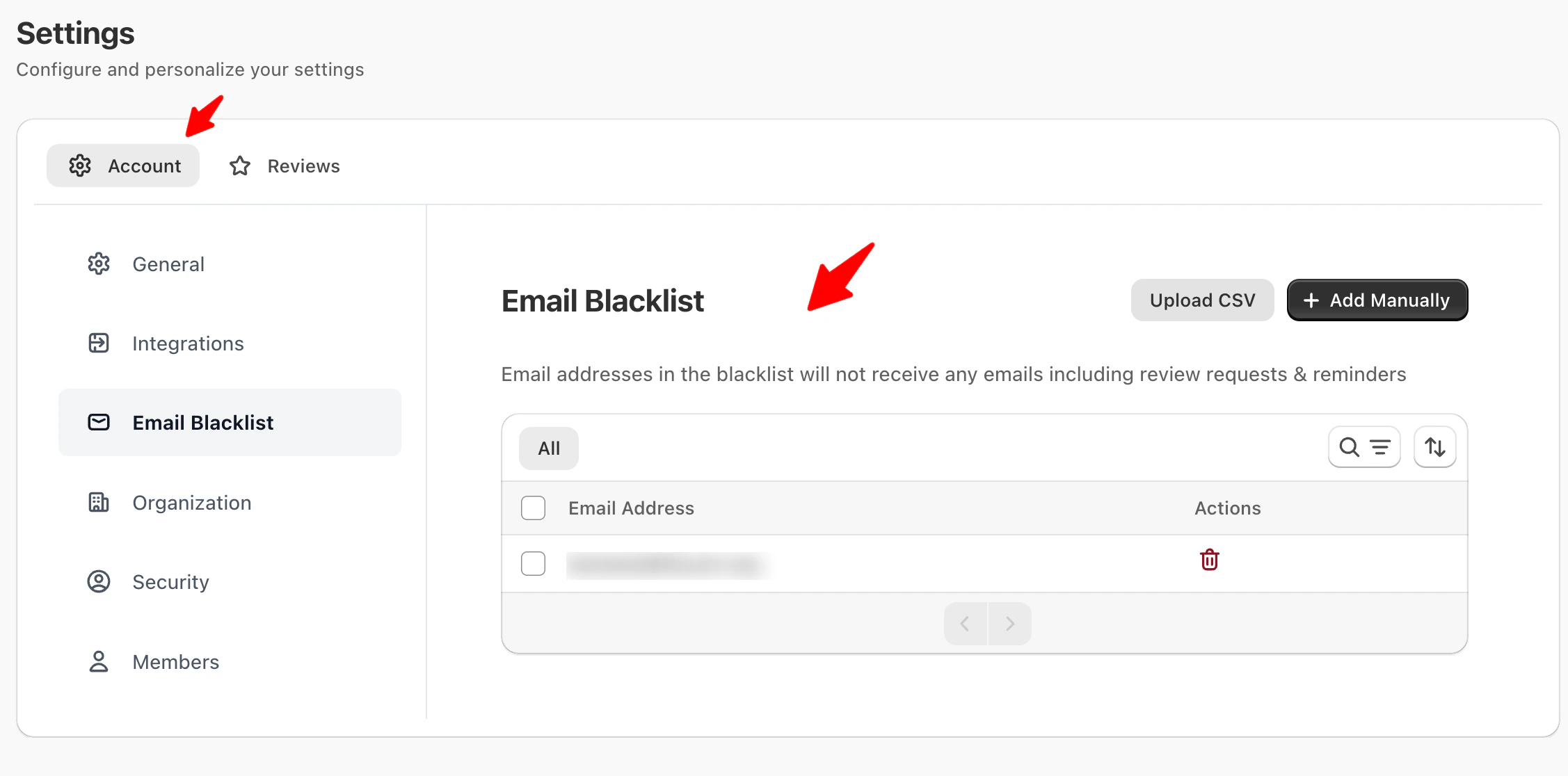
How Email Blacklist Works
- Blacklisted email addresses will not receive any Yuko emails
- Applies to both automated and manual review requests
- Works across all stores and products
- Removing an email immediately re-enables email delivery
📝 Note: Email Blacklist affects email delivery only. It does not remove existing reviews.
Add Email Addresses to the Blacklist:
You can add email addresses using either of the following methods.Add Emails Manually
Click Add Manually to exclude email addresses one by one or in bulk.
How it works:
- Enter email addresses in a comma-separated format
- Wildcards (
*) are supported to match patterns - Entries are case-insensitive
Supported formats:
Block a single email addressImportant notes:
- Invalid email formats may be ignored without an error message
- Make sure entries are formatted correctly before saving
Upload Emails via CSV
For bulk exclusions, click Upload CSV.
How it works:
- Upload a CSV file containing email addresses or wildcard patterns
- Each row should contain one email entry
- Wildcards (
*) are supported in CSV uploads
CSV requirements:
- One email or pattern per row
- Maximum file size: 15 KB
- Invalid entries are skipped automatically
How These Settings Work Together
For the highest review quality and lowest spam risk:- Restrict reviews to invited customers
- Hide the Write a Review button
- Enable personal information restriction
- Maintain an updated email blacklist
⭐ Best Practice: This configuration mirrors how most high-volume merchants collect reviews.