
Collect Exactly the Feedback You Need
Customize every field in your review collection forms to match your brand voice and gather specific insights. Whether customers are submitting reviews via email or on your website, you control what information they provide and how the form looks. What you’ll achieve:- Match review forms to your brand style and tone
- Collect specific feedback relevant to your products
- Control which fields are required vs optional
- Reduce form abandonment with smart field choices
- Gather richer, more detailed customer reviews
Impact: Customized review forms collect 30-40% more detailed feedback and see 20% higher completion rates than generic forms
Why Customize Review Form Inputs
Generic review forms miss opportunities to gather valuable, specific feedback:Generic Form Problems
What happens with default settings:
- Generic placeholder text (“Write your review…”)
- Irrelevant questions for your product type
- Too many required fields (abandonment)
- No brand personality
- Misses product-specific insights
Customized Form Benefits
What happens with customization:
- Brand-specific tone and language
- Targeted questions for your products
- Optimized required vs optional fields
- Matches your site design
- Collects actionable insights
How to Access Review Form Customization
Yuko Dashboard → Reviews →Widgets → Review Collection Form -> Customise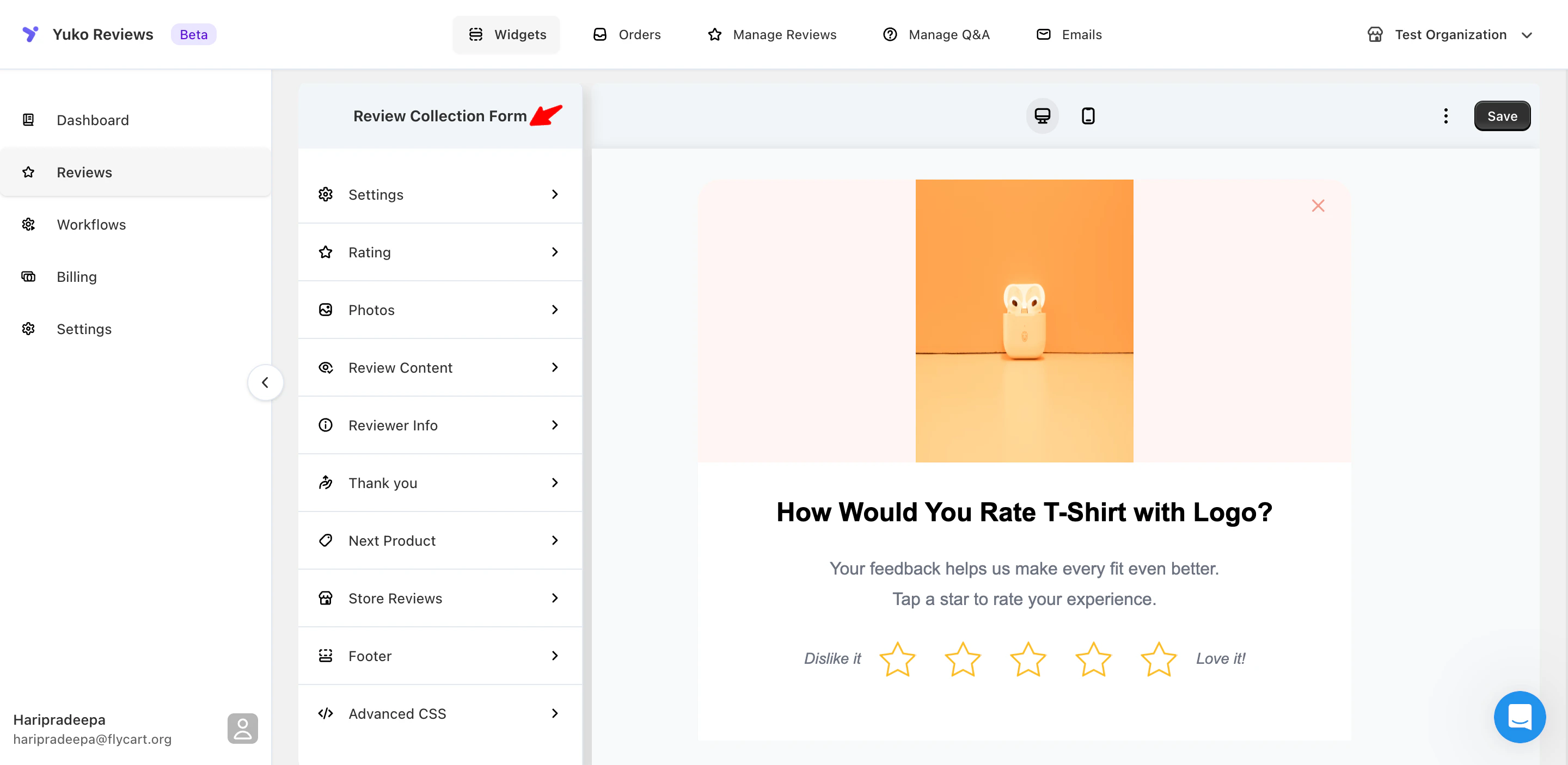
Navigate to Form Customization
In the Review Collection Form settings, you’ll see customization sections:
- Rating display
- Photo uploads
- Review content fields
- Reviewer information
- Thank you message
- Next product prompts
- Footer text
- Advanced styling (CSS)
Customize Each Section
Work through each section, adjusting:
- Field labels and placeholder text
- Required vs optional settings
- Character limits and validation rules
- Display order and visual styling
- Help text and examples
Preview Your Form
Use the preview function to see how your form looks:
- Desktop view
- Mobile view
- Email vs on-site versions
- Test form submission
Launch and Monitor
Activate your customized review form and track results:
- Completion rate (target: 60%+)
- Average review length (target: 50+ words)
- Photo upload rate (target: 15-30%)
- Time to complete (target: under 2 minutes)
Form Customization Options
YUKO lets you fully customize the review form so it matches your brand and encourages more customers to submit reviews. Each section of the form can be styled and edited independently to improve clarity, trust, and conversion rates. This guide explains what each customization section controls and best practices for configuring it.Settings
Settings
-
Controls:
The overall appearance of the review form dialog.Customizable Elements
- Background color
- Rating icon color
- Title text color
- Description text color
- Button background color
- Button text color
- Input border color
- Input label color
- Error message color
Best Practices
- Match dialog colors with your store’s primary brand colors
- Ensure sufficient contrast between text and background
- Use a clear, attention-grabbing button color for primary actions
- Keep error colors noticeable but not overwhelming
Customize the star rating experience:
Customize the star rating experience:
Controls:
How customers submit star ratings.Customizable Elements
How customers submit star ratings.Customizable Elements
- Rating question text
- Supporting description text
- Optional lowest rating label
- Optional highest rating label
Best Practices
- Keep the rating question short and neutral
- Use friendly, positive language for the highest rating
- Avoid aggressive or negative wording for the lowest rating
- Do not use leading questions that bias responses
Photos Section
Photos Section
Controls:
Photo uploads within the review form.
Photo uploads within the review form.
Customizable Elements
- Section title
- Section description
- Upload button text
- Image upload helper text
Best Practices
- Make photo uploads optional
- Use encouraging, benefit-focused language
- Keep upload instructions simple
- Ensure uploads are mobile-friendly
Review Content Section
Review Content Section
Controls:
Written feedback submitted by the customer.
Written feedback submitted by the customer.
Customizable Elements
- Section title
- Subtitle or helper text
- Review content placeholder text
- Review title field (optional)
- Review title placeholder text
Best Practices
- Use open-ended prompts to encourage honest feedback
- Keep placeholders short and helpful
- Optional review text increases submission volume
- Optional review titles help highlight key points in reviews
Reviewer Info Section
Reviewer Info Section
Controls:
Customer identity and verification fields.
Customer identity and verification fields.
Customizable Elements
- Section title
- Section description
- First name label and placeholder
- Last name label and placeholder
- Email label and placeholder
- Review disclaimer text
- Enable anonymous reviews
Best Practices
- Always explain why email is collected
- Reassure customers that emails are not shown publicly
- Keep identity fields minimal to reduce friction
- Enable anonymous reviews if you want higher submission rates
Note: Displaying clear privacy and terms information builds trust and reduces drop-offs.
Thank You Screen
Thank You Screen
Controls:
What customers see after submitting a review.
What customers see after submitting a review.
Customizable Elements
- Thank-you title
- Thank-you description
- Primary action button text
Best Practices
- Thank customers genuinely
- Confirm the review was submitted successfully
- Use a positive, celebratory tone
- Offer a clear next action without pressure
Next Products Section
Next Products Section
Store Reviews Section
Store Reviews Section
Controls:
Collect feedback about the overall shopping experience.
Collect feedback about the overall shopping experience.
Customizable Elements
- Enable store reviews
- Product review completion message
- Store review intro title and subtitle
- Store review photo slide (optional)
- Store review content prompt
- Collect review title
- Enable anonymous store reviews
Best Practices
- Clearly differentiate store reviews from product reviews
- Ask about shipping, support, and overall experience
- Keep store review prompts neutral and open-ended
- Optional photo uploads increase engagement
Footer Settings
Footer Settings
Advanced CSS
Advanced CSS
Controls:
Fine-grained styling using custom CSS.
Fine-grained styling using custom CSS.
Customizable Elements
- Enable custom CSS
- CSS editor for overrides
Common Use Cases
- Match exact brand guidelines
- Adjust spacing, borders, or animations
- Override typography
- Customize responsive behavior
Best Practices
- Test changes in staging before publishing
- Ensure accessibility is not affected
- Re-check mobile layouts
- Monitor form completion rates after changes
Next Steps
Customize Your Review Form
Set up your review form fields based on your product type and brand.Time: 30 minutes Current page: You are here
Preview and Test Form
Test your customized review form on desktop and mobile before going live.Time: 10 minutes Action: Use preview mode, submit test review
Launch and Monitor Performance
Track completion rate, review length, and photo uploads to optimize.Time: Ongoing Target metrics: 70%+ completion, 50+ words average, 20%+ photos
Set Up Review Request Emails
Configure automated emails to request reviews from customers after purchase.Time: 15 minutes → Review request email setup
Need Help?
Book Free Setup Call
Talk to our team for personalized setup helpTime: 30 minutes
Contact Support
Email us at support@yuko.soResponse time: Within 24 hours
View All Guides
Browse detailed guides for every feature
Integration Help
Connect Yuko with other tools
Pro tip: Start simple with basic fields, launch, and collect 50+ reviews. Then analyze what information is missing and add 1-2 custom fields based on actual needs. Don’t over-customize upfront.